
How to Speed Up a Slow Computer: Expert Tips from CAH Tech
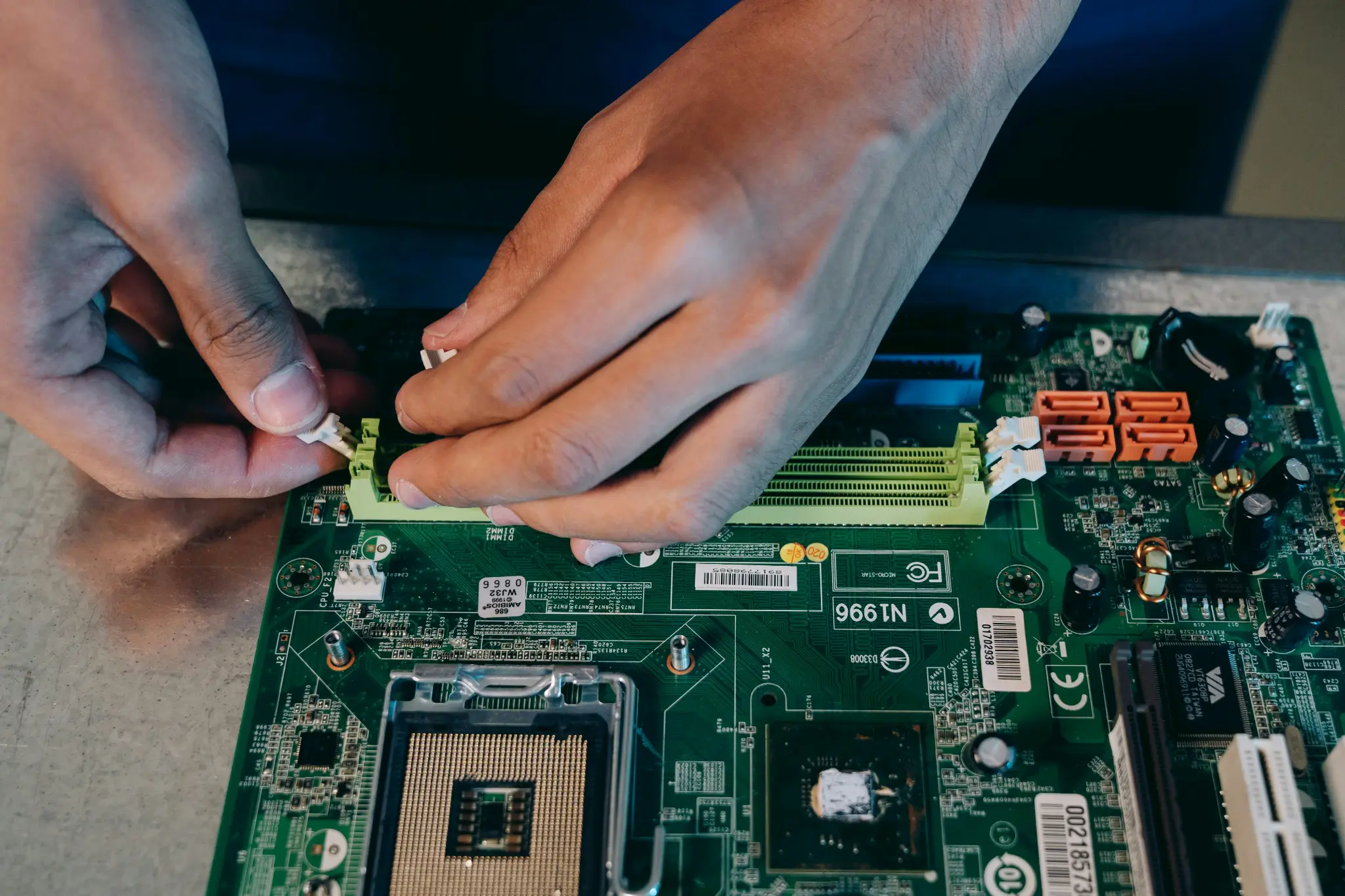
Is your computer running slower than usual? Learn proven methods to boost performance and productivity.
1. Upgrade to a Solid State Drive (SSD)
If your computer still uses a traditional mechanical hard drive (HDD), upgrading to an SSD is the single most impactful performance improvement you can make. SSDs have no moving parts and can read/write data 10-20x faster than HDDs.
- Faster Boot Times: Windows startup drops from 2-3 minutes to 15-30 seconds with an SSD
- Instant Application Loading: Programs like Microsoft Office, Photoshop, and web browsers open almost instantly
- Improved Multitasking: Switch between applications smoothly without lag or freezing
- Longer Battery Life: SSDs consume less power than HDDs, extending laptop battery life by 30-45 minutes
- Durability: No moving parts means SSDs are more resistant to physical shock and last longer
CAH Tech Recommendation: We typically install 500GB-1TB SSDs for most users. We'll clone your existing drive so you don't lose any data, programs, or settings. Expect to pay $150-$300 for parts and installation.
2. Add More RAM (Memory)
RAM (Random Access Memory) is your computer's short-term memory. When you run out of RAM, Windows starts using your hard drive as "virtual memory," which is dramatically slower. More RAM means smoother multitasking and better performance.
- Minimum for Windows 11: 8GB RAM is the bare minimum; 16GB is recommended for comfortable multitasking
- For Power Users: 32GB+ RAM if you work with video editing, 3D modeling, virtual machines, or run many programs simultaneously
- Check Current Usage: Open Task Manager (Ctrl+Shift+Esc) and check the Performance tab. If memory usage is consistently above 80%, you need more RAM
- Easy Upgrade: RAM upgrades are simple and affordable—most computers have empty slots for additional memory
- Instant Results: You'll notice smoother performance immediately, especially when running multiple browser tabs, Office apps, and background programs
CAH Tech Recommendation: We'll check your current RAM configuration and install compatible memory modules. Typical cost: $80-$200 for parts and installation depending on capacity.
3. Remove Bloatware and Startup Programs
Bloatware is pre-installed software you never use that consumes system resources. Many programs also configure themselves to launch automatically at startup, slowing down boot times and eating RAM in the background.
- Uninstall Unused Programs: Go to Settings → Apps → Installed Apps and remove software you don't recognize or use. Be cautious—don't uninstall system components
- Disable Startup Programs: Open Task Manager → Startup tab and disable programs you don't need running at boot (like Spotify, Skype, Adobe Creative Cloud updaters)
- Common Bloatware: Manufacturer utilities, trial antivirus software, browser toolbars, and "PC optimizer" scams that actually slow you down
- Browser Extensions: Remove unnecessary browser extensions—each one consumes memory and can slow page loading
- Background Services: Some programs run hidden background services. Use Task Manager to identify resource-hungry processes
CAH Tech Recommendation: We perform comprehensive system cleanups, removing bloatware, optimizing startup programs, and configuring Windows for maximum performance without sacrificing functionality.
4. Run Disk Cleanup and Defragmentation
Over time, your hard drive accumulates temporary files, system caches, and fragmented data that slow performance. Regular maintenance keeps your drive running efficiently.
- Disk Cleanup: Windows' built-in Disk Cleanup tool removes temporary files, system logs, Windows Update leftovers, and Recycle Bin contents—often freeing 10-50GB
- Clear Browser Cache: Web browsers store gigabytes of cached images and files. Clearing cache can free significant space and improve browser speed
- Defragmentation (HDDs only): If you have a traditional hard drive, run Disk Defragmenter monthly to reorganize fragmented files for faster access
- Don't Defrag SSDs: Never defragment an SSD—it provides no benefit and reduces the drive's lifespan. Windows automatically optimizes SSDs with TRIM
- Storage Sense: Enable Windows Storage Sense to automatically delete temporary files and empty the Recycle Bin
CAH Tech Recommendation: We perform deep system cleaning, removing hidden temp files, old Windows installations, and optimizing drive performance. This often frees 20-100GB of space.
5. Scan for Malware and Viruses
Malware, viruses, and potentially unwanted programs (PUPs) can dramatically slow your computer by consuming CPU, memory, and network bandwidth in the background. Some malware is designed to mine cryptocurrency or send spam using your computer's resources.
- Run Full Scan: Use Windows Defender or your antivirus software to perform a complete system scan—not just a quick scan
- Malwarebytes: Download and run Malwarebytes Free to catch threats that traditional antivirus might miss
- Check Task Manager: Look for unfamiliar processes consuming high CPU or memory. Research suspicious processes before terminating them
- Browser Hijackers: Remove unwanted browser extensions, reset your homepage and search engine if they've been changed without permission
- Adware Removal: Programs like AdwCleaner specialize in removing adware and toolbars that slow browsing
CAH Tech Recommendation: We provide comprehensive virus and malware removal services, using professional-grade tools to clean infections and prevent reinfection. Typical service: $100-$150.
6. Update Drivers and Windows
Outdated drivers and Windows updates can cause performance issues, compatibility problems, and security vulnerabilities. Keeping your system current ensures optimal performance and stability.
- Windows Updates: Go to Settings → Windows Update and install all pending updates. Major updates often include performance improvements
- Graphics Drivers: Update your GPU drivers from NVIDIA, AMD, or Intel's website. Outdated graphics drivers cause lag, crashes, and poor gaming performance
- Chipset Drivers: Visit your computer manufacturer's support website and download the latest chipset drivers for your model
- Network Drivers: Slow internet? Update your Wi-Fi or Ethernet adapter drivers to fix connectivity issues
- Automatic Updates: Enable automatic driver updates through Windows Update or use manufacturer utilities (like Dell SupportAssist or HP Support Assistant)
CAH Tech Recommendation: We perform complete driver audits and updates, ensuring all hardware components have the latest, stable drivers for optimal performance and compatibility.
7. Adjust Power Settings and Visual Effects
Windows includes power-saving features and visual effects that can slow performance, especially on older computers. Optimizing these settings provides an immediate speed boost.
- High Performance Mode: Go to Settings → System → Power & Battery and select "Best Performance" or "High Performance" power plan
- Disable Visual Effects: Right-click This PC → Properties → Advanced System Settings → Performance Settings. Select "Adjust for best performance" or customize which effects to disable
- Disable Transparency: Settings → Personalization → Colors → Transparency effects OFF saves GPU resources
- Reduce Animations: Settings → Accessibility → Visual Effects → Animation effects OFF makes Windows feel snappier
- Laptop Battery: For laptops, balance performance with battery life by using "Balanced" mode when unplugged and "High Performance" when plugged in
CAH Tech Recommendation: We optimize Windows settings for your specific use case, balancing performance, battery life (for laptops), and visual appeal based on your preferences.
Need Professional Help?
CAH Tech offers hardware upgrades and system optimization services.
SCHEDULE SERVICE