
Data Backup Best Practices: Protect Your Files from Loss
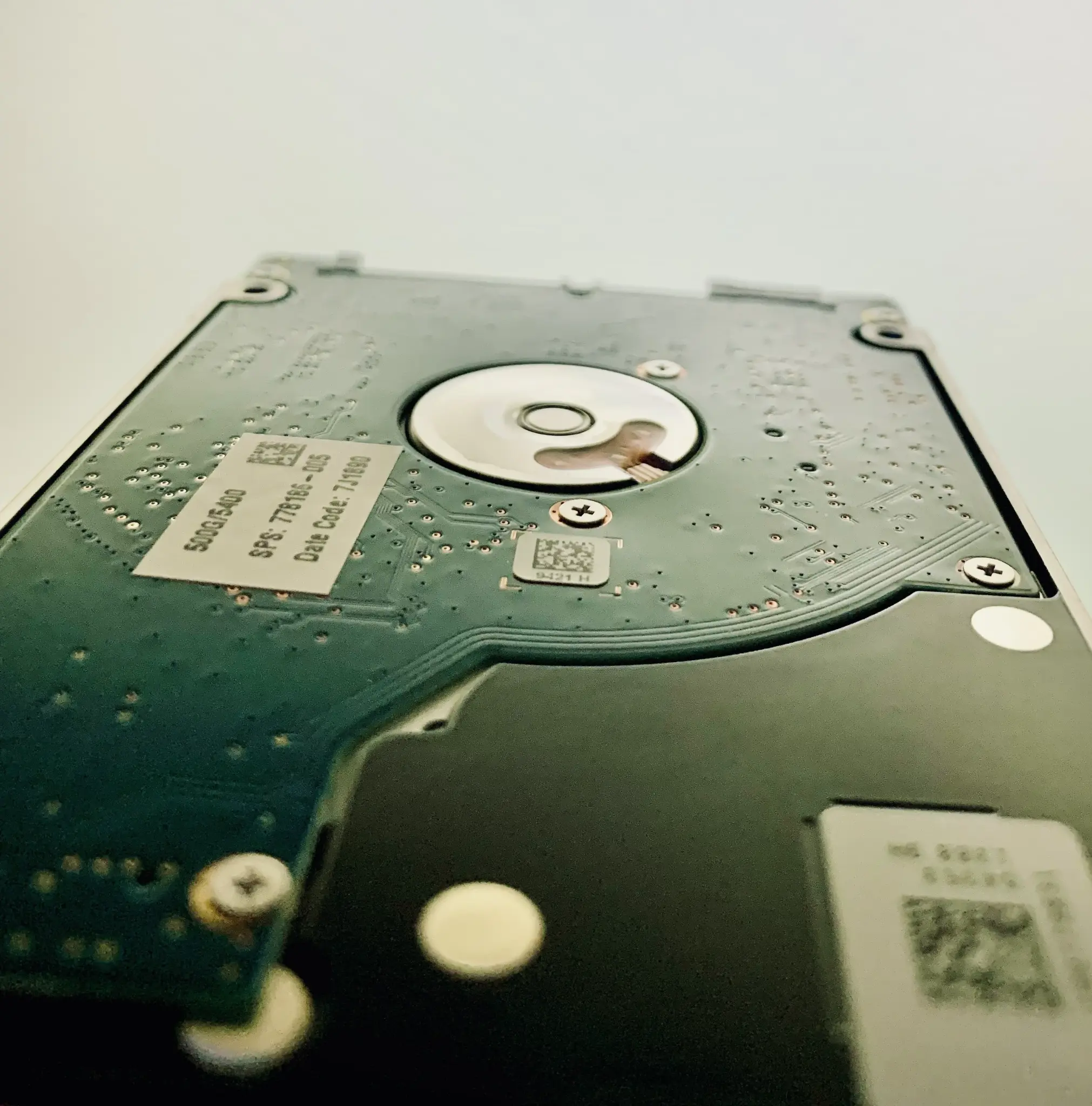
Hard drives fail. Ransomware encrypts files. Laptops get stolen. Natural disasters destroy offices. The only way to protect your irreplaceable data is a robust backup strategy. Here's everything you need to know about data backup best practices.
The 3-2-1 Backup Rule: Your Safety Net
The 3-2-1 rule is the gold standard for data backup. It's simple, effective, and protects against virtually every data loss scenario. Follow this rule and your data will survive almost anything.
- 3 Copies of Your Data: Keep three total copies—your original working copy plus two backups. This protects against single backup failure and gives you redundancy.
- 2 Different Media Types: Store backups on different media (e.g., internal drive + external hard drive, or local NAS + cloud storage). This protects against media-specific failures.
- 1 Offsite Backup: Keep at least one backup offsite or in the cloud. This protects against fire, flood, theft, and other disasters that could destroy everything in one location.
Example Implementation: Original files on your computer's SSD (copy 1), daily backup to external USB drive (copy 2, different media), automatic cloud backup to Backblaze or Google Drive (copy 3, offsite).
CAH Tech Tip: We help businesses and individuals implement 3-2-1 backup strategies with automated solutions that require no daily effort. Set it up once and your data is protected forever.
Cloud Backup vs Local Backup: Pros and Cons
Both cloud and local backups have advantages. The best strategy uses both together for maximum protection and flexibility.
Cloud Backup Advantages:
- Offsite Protection: Your data is safe even if your home or office burns down, floods, or is burglarized
- Automatic and Continuous: Cloud services backup changes automatically in real-time or on schedules without user intervention
- Access Anywhere: Restore files from any device with internet access, perfect for travel or remote work
- Ransomware Protection: Most cloud services keep file versions, so you can restore pre-encryption versions if attacked
- No Hardware Management: No drives to maintain, replace, or worry about failing
Cloud Backup Disadvantages:
- Requires Internet: Initial backup and restores are slow over home internet. Backing up 1TB can take days or weeks
- Ongoing Costs: Monthly/yearly subscription fees add up over time ($60-$150/year typical for 1-2TB)
- Privacy Concerns: Your data is stored on third-party servers. Choose reputable providers with encryption
- Restoration Speed: Downloading large amounts of data is slower than restoring from local backup
Local Backup Advantages:
- Fast Backup and Restore: USB 3.0 and NAS devices backup and restore at 100+ MB/s, much faster than internet speeds
- No Internet Required: Works even when internet is down or unavailable
- One-Time Cost: Buy a drive once ($80-$200) instead of paying monthly fees forever
- Large Capacity: Multi-terabyte drives are affordable for backing up entire computers and media libraries
- Complete Control: Your data never leaves your possession, no privacy concerns
Local Backup Disadvantages:
- No Disaster Protection: Fire, flood, or theft can destroy your computer and local backup simultaneously
- Drive Failure: External drives fail too. You need to monitor drive health and replace aging drives
- Manual Process: Requires remembering to connect the drive and run backups (though this can be automated)
- Physical Damage: Drops, power surges, and wear can damage drives and lose your backup
CAH Tech Recommendation: Use both. Local backup for fast daily backups and quick restores. Cloud backup for disaster protection and offsite redundancy. This gives you speed, convenience, and maximum protection.
Choosing the Right Backup Software
Good backup software automates the process, handles versioning, and makes restoration easy. Here are the best options for different needs.
- Windows Backup (Built-in): Free and included with Windows. File History backs up documents, photos, and desktop files automatically to external drives. Simple but limited features.
- macOS Time Machine (Built-in): Excellent built-in backup for Macs. Automatic hourly backups to external drives with easy browsing of file versions. Highly recommended for Mac users.
- Backblaze (Cloud): $99/year for unlimited cloud backup. Continuous automatic backup of everything. Great for home users. Restoration can be slow for large amounts of data.
- Acronis True Image: $50-$100/year. Complete system image backups plus file backup. Fast restoration, includes cloud storage. Good for business users.
- Macrium Reflect: Free for home users, paid for businesses. Creates full disk images for complete system recovery. Excellent for disaster recovery planning.
- Veeam Backup: Free for personal use. Enterprise-grade backup with advanced features. Best for tech-savvy users and businesses with complex needs.
- Google Drive / OneDrive / Dropbox: $10-$20/month for 1-2TB. Syncs files across devices with automatic cloud backup. Great for documents but not full system backup.
CAH Tech Recommendation: For most users, we recommend Windows Backup or Time Machine for local backups, plus Backblaze or Google Drive for cloud backup. This covers all bases affordably.
What to Back Up: Prioritizing Your Data
Not all data is equally important. Prioritize irreplaceable data first, then expand to convenience backups as storage allows.
Critical Priority (Must Backup):
- Personal Photos and Videos: Irreplaceable memories. These should have 3+ copies including cloud storage.
- Work Documents: Contracts, invoices, tax records, business files. Loss could cost money or legal problems.
- Financial Records: Bank statements, investment records, insurance documents, tax returns.
- Personal Projects: Creative work, writing, artwork, music, code you've created.
- Email and Contacts: If stored locally (not webmail), backup your email database and address book.
High Priority (Should Backup):
- Application Settings: Browser bookmarks, software configurations, saved passwords (from password manager).
- Desktop and Downloads: Often contains important files you haven't organized yet.
- Music and Media Libraries: If you've purchased or ripped media, backup to avoid re-downloading/re-ripping.
Low Priority (Optional):
- Installed Programs: Can be re-downloaded and reinstalled. Don't waste backup space on program files.
- Operating System: Windows can be reinstalled. System image backups are convenient but not critical.
- Temporary Files: Browser cache, temp folders, downloads you don't need. Exclude these to save space.
- Streaming Media: Netflix downloads, Spotify offline music. These can be re-downloaded and don't need backup.
CAH Tech Tip: Start with critical priority data. Once that's backed up reliably, expand to high priority. Don't let perfect be the enemy of good—backing up your photos is infinitely better than backing up nothing while planning the perfect system.
Backup Frequency: How Often Should You Backup?
Backup frequency depends on how often your data changes and how much data loss you can tolerate. More frequent backups mean less potential data loss.
- Real-Time / Continuous: Cloud services like Backblaze, Google Drive, and OneDrive backup changes as they happen. Best for critical business data and active projects. No data loss risk.
- Hourly: Time Machine (Mac) defaults to hourly backups. Good for active work environments where files change throughout the day. Maximum 1 hour of data loss.
- Daily: Minimum recommended frequency for most users. Schedule backups for overnight when the computer isn't in use. Maximum 24 hours of data loss.
- Weekly: Acceptable for casual users who don't create much new data. Good for secondary backups or archive purposes. Maximum 7 days of data loss.
- Monthly: Only for archival backups or rarely-changing data. Not recommended as your primary backup strategy.
Ask Yourself: "If my computer died right now, how much work would I lose?" If the answer is more than you're comfortable with, backup more frequently.
CAH Tech Recommendation: Set up automatic daily backups at minimum. For businesses or active creators, use continuous cloud backup plus daily local backups for maximum protection.
Testing Your Backups: Don't Wait for Disaster
A backup you've never tested is just a hope, not a plan. Many people discover their backups don't work only when they desperately need them. Regular testing prevents this nightmare.
- Test Restoration Monthly: Once a month, restore a few random files from your backup to verify they're intact and accessible. This takes 5 minutes and provides peace of mind.
- Full System Restore Test Annually: Once a year, test a complete system restoration to a spare drive or virtual machine. This ensures your disaster recovery plan actually works.
- Verify Backup Completion: Check backup logs weekly to ensure backups are completing successfully. Failed backups often go unnoticed until it's too late.
- Check File Integrity: Some backup software includes verification features that check backed-up files against originals. Enable this if available.
- Monitor Drive Health: Use tools like CrystalDiskInfo (Windows) or Disk Utility (Mac) to monitor backup drive health. Replace drives showing warning signs before they fail.
- Update Recovery Documentation: Keep written instructions for how to restore from your backups. Include account passwords, encryption keys, and step-by-step procedures.
CAH Tech Service: We provide backup testing and verification services for businesses. We'll test your restoration process, document procedures, and ensure your backup strategy actually protects you when disaster strikes.
Ransomware Protection: Immutable Backups
Modern ransomware doesn't just encrypt your computer—it searches for and encrypts backup drives too. Immutable backups protect against this by preventing modification or deletion.
- Disconnect Backup Drives: After backup completes, physically disconnect external drives. Ransomware can't encrypt what isn't connected.
- Cloud Versioning: Use cloud services with file versioning (Backblaze, Google Drive, OneDrive). Even if ransomware encrypts and uploads encrypted files, you can restore previous versions.
- Immutable Cloud Backup: Services like Backblaze keep deleted files for 30 days and offer extended version history. Ransomware can't permanently delete these backups.
- Network-Attached Storage (NAS) with Snapshots: Enterprise NAS devices take immutable snapshots that ransomware can't modify. Synology and QNAP offer this feature.
- Offline Backup Rotation: Keep multiple backup drives and rotate them. Store one offsite. Even if ransomware hits, you have an unaffected backup.
- Write-Once Media: For critical archives, burn data to Blu-ray discs (write-once). These physically cannot be modified or encrypted.
CAH Tech Recommendation: For businesses, we implement immutable backup strategies with automated cloud versioning and disconnected local backups. This provides ransomware-proof protection without daily effort.
Common Backup Mistakes to Avoid
Learn from others' mistakes. These common backup errors have cost people irreplaceable data and thousands of dollars.
- Assuming Sync is Backup: Dropbox, OneDrive, and Google Drive sync files, but if you delete a file or it gets corrupted, it syncs the deletion/corruption. True backup keeps versions and deleted files.
- Never Testing Restores: Discovering your backup is corrupted or incomplete when you desperately need it is devastating. Test regularly.
- Keeping Backup Next to Computer: Fire, flood, or theft affects both your computer and nearby backup drive. Keep one backup offsite or in the cloud.
- Using Same Drive for Backup and Storage: Partitioning one drive for backup doesn't protect against drive failure. Use separate physical drives.
- Ignoring Backup Failure Notifications: Backup software alerts you to failures. Don't ignore these warnings—investigate and fix immediately.
- Backing Up to Failing Drives: Old drives fail. Replace backup drives every 3-5 years, or sooner if they show warning signs.
- No Encryption for Sensitive Data: If your backup contains financial or personal information, encrypt it. Stolen unencrypted backup drives expose your data.
- Forgetting Mobile Devices: Your phone contains photos, contacts, and data. Enable automatic cloud backup for iOS (iCloud) or Android (Google Photos/Drive).
CAH Tech Service: We audit existing backup strategies and identify vulnerabilities. We'll help you avoid these mistakes and implement a bulletproof backup plan.
Professional Backup Setup and Data Recovery
CAH Tech helps Northeast Atlanta residents and businesses protect their data with professional backup solutions. We'll design a backup strategy for your needs, set up automated backups, and ensure everything works correctly.
Already experienced data loss? We offer data recovery services for failed hard drives, deleted files, and ransomware attacks. Our mobile service comes to you in Buford, Alpharetta, Suwanee, Duluth, and throughout the Atlanta area.